 kōan
The terminal UI
The TUI follows the shape of the Mac and mobile apps: pages you move between, a sidebar or tab bar to do it with, and a transport bar that stays put. Everything is reachable by keyboard and by mouse.
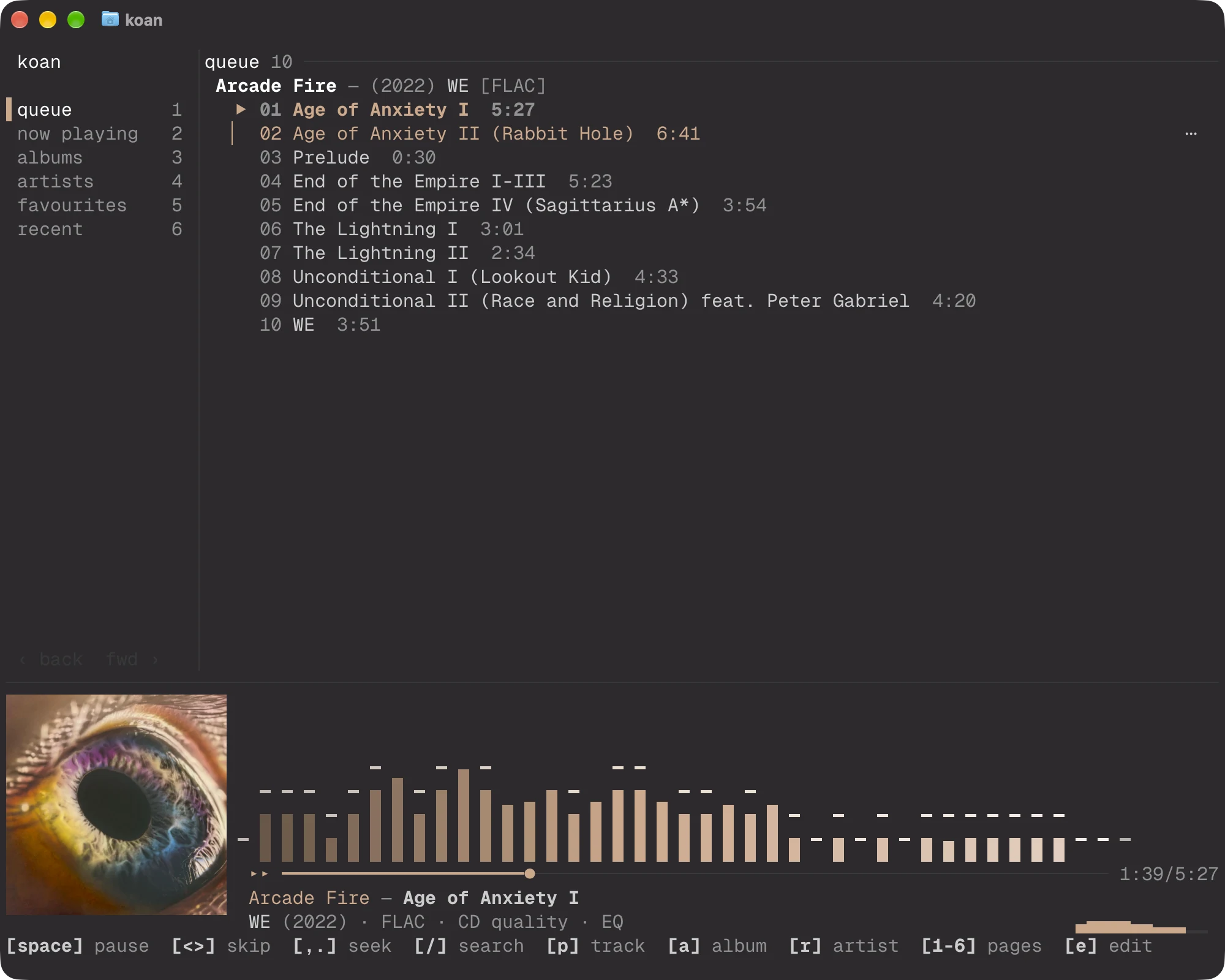
Pages
| Key | Page | What it shows |
|---|---|---|
1 |
Queue | The queue, in album runs or a row per track. Select, reorder and remove here |
2 |
Now playing | The cover, the signal path, levels, the spectrum, lyrics and the EQ curve |
3 |
Albums | Every album in the library, as tiles of cover art or as rows |
4 |
Artists | Every artist, with how many albums and tracks each has |
5 |
Favourites | The artists, albums and tracks you have favourited |
6 |
Recent | The artists, albums and tracks played in the last 30 days |
7 |
History | Every play, newest first, under the day it was played |
8 |
Playlists | Your playlists, and each one's tracks |
9 |
Settings | The settings that otherwise mean editing config.toml |
0 |
Search | Artists, albums and tracks that match what you type |
The Tracks page lists every track in the library and Downloaded what can play on this device; both are reached from the sidebar and from a shelf's headings. The wheel and the scrollbars (which can be dragged) scroll every page.
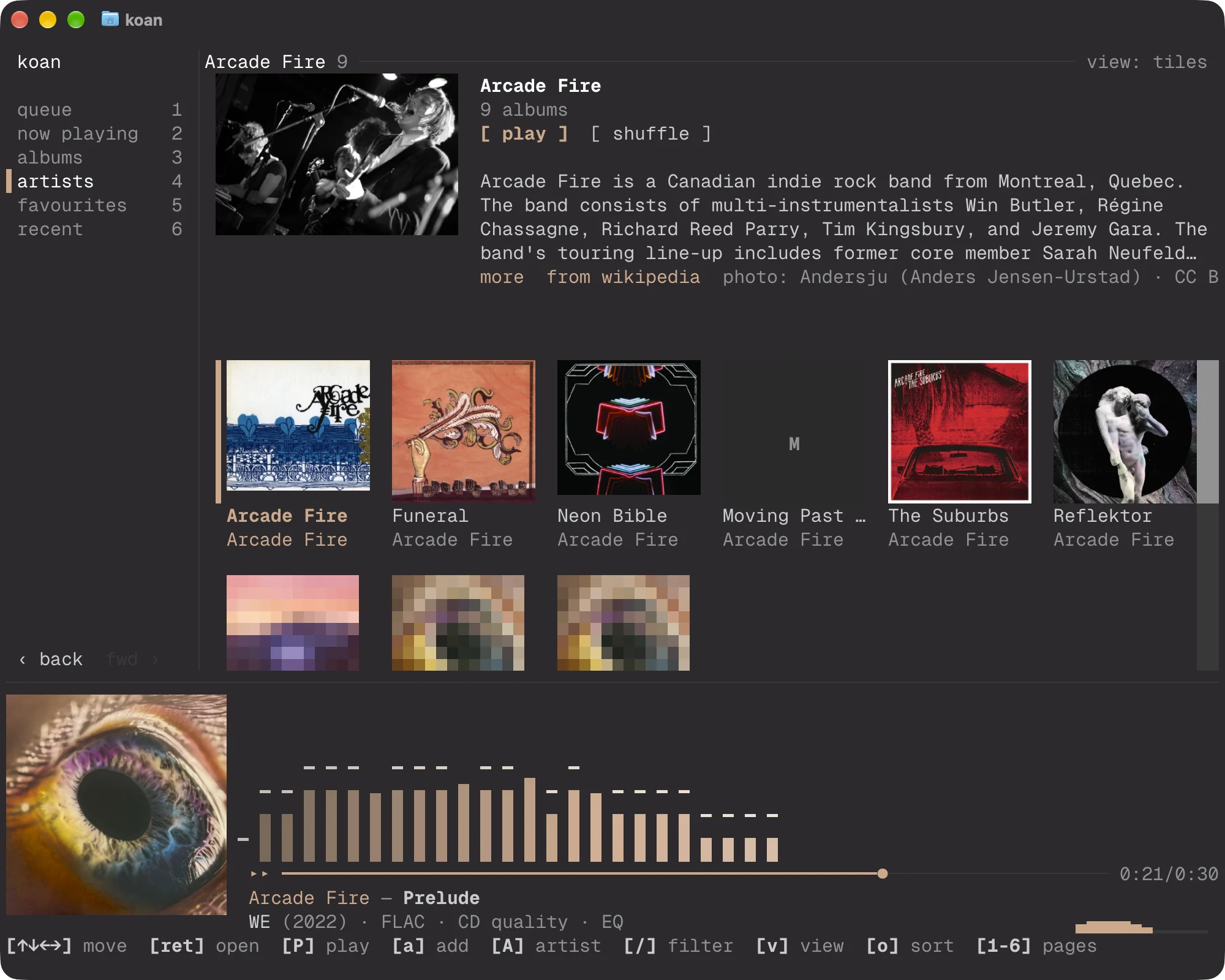
Opening an album or an artist, from a tile, a link or the keys below, goes to its page. Both sit under Albums and Artists in the sidebar and in history.
- The album page holds the cover, who it is by, its year, codec and length, and its tracks under a heading per disc.
- The artist page is headed with their name and photograph, when there is one. Beside it are how many albums, the heart,
play,shuffle,+ addandplay next, and the opening of their Wikipedia article; their albums follow as tiles. An artist with no albums of their own lists the tracks they appear on.
Playing an artist plays the albums they are the album artist of, not the ones they only feature on.
Tab and Shift+Tab step through the pages. Pages keep a history like a browser: [ and ], or Alt+Left and Alt+Right, go back and forward, and Esc leaves a page for the one before it. Albums, Favourites and Recent are the library's own listings with a filter on, the same ones the apps use, so the three agree about what is on a shelf.
Favourites, play next and downloads
As in the apps, an album and an artist can be favourites as well as tracks, and the apps' menus offer the same as these keys.
ffavourites whatever the cursor is on, andHits artist (on an artist's page, that artist; the heart beside the name does the same with a click). A favourite album wears a♥before its title.Nputs an album, a track or whatever the cursor is on next in the queue instead of last, on the browsing pages, the shelves, the album page and History.ishows what the library knows of a track, wherever it is listed.dandudownload an album or track to this device or remove the download.
The actions menu
Every action with a key has a way to reach it by pointer. m, or ⋯ actions in the heading of the browsing pages, an album page and History, opens a menu for what the cursor is on. It has the items the apps' menus have, in their order and grouped by lines as theirs are:
- play (which replaces the queue), play next, add to queue and, for an album or an artist, shuffle
- add to playlist
- favourite or remove the favourite, download to cache or remove the downloaded file, track info
- go to the album and the artist; a record or track credited to several artists has a "Go to" item for each, named as the credit spells it
Enter or a click runs an item, and the cursor steps over the lines. Esc or a click outside closes the menu.
The queue
The queue lists what is queued in album runs, as the apps do: a heading over each run of tracks from one album, with its year, how many tracks, how long and the format when they share one, and the tracks under it. A single, a one-track album and a track with no album stand as rows of their own.
v, or by album in the heading, switches to a row per track, which names each track's artist and album; the choice is kept in config.local.toml.
The toolbar names a playlist or an album when the queue is exactly that one, and says how many tracks and how long. Its controls are keys as well:
playing(o) scrolls to what is playing- the view (
v) undoandredo(Ctrl+Z,Ctrl+Y)saveas a playlist (W)clear(Ctrl+X, which undo puts back)- with tracks selected,
deselect(Esc) andremove(Delete)
Each row has the same columns, so lengths and formats line up down the page:
- what the track is doing:
▶playing,✓played,·waiting,↓next to download,!could not be fetched - its number, the title and who it is by (both links)
- where its bytes are:
●on the server and downloaded,○on the server only,▪a file in the library,⊘not on this device while offline, or how much of it has arrived - the heart (a click favourites the track), the format and the length
Played tracks are drawn quieter.
The cursor and the selection are always live, with no mode to enter. ↑ and ↓ (or j and k) move the cursor, and t tags the row under it or lets it go, as in mutt. Shift with the arrows, the paging keys or a click extends the selection from where the cursor last stood; Ctrl+A selects everything and Esc lets the selection go.
The queue's keys act on the selection, or with none on the row under the cursor: Enter plays it, J and K move it down or up (a selection with gaps closes up), d removes it, w puts it in a playlist and i shows its track.
The row's menu (m, a right click, or the ⋯ at its end) offers what the apps' queue menu does: on a track, play, remove, add to playlist, organize files, favourite, go to the album or the artist, download it or remove the download, copy a share link and track info; on an album heading, the same for the whole run; on several tracks, what applies to all of them. A track the library no longer has can only be played or removed.
The picker
p, a and r on the queue open the picker, the apps' picker sheet, on its tracks, albums or artists tab. Typing narrows the tab shown, ← and → (or a click on a tab) change tab, and Tab (or a click) picks the row under the cursor or lets it go. Picks are kept across the tabs, in the order they were made, and an album or an artist stands for all of its tracks.
Enteradds the picks to the queue.Ctrl+Enteradds them and plays the first.Ctrl+Rreplaces the queue with them.
With nothing picked, each acts on the row under the cursor. A double click plays the row clicked on its own.
Search
0 opens a box that searches the library as you type. What matches is laid out as a shelf is (below), closest first, as the apps' search results are: the first few artists, albums and tracks, each heading counting everything that matches and opening the browser with the search in its filter.
Enter (or ↓) moves from the box to the results, and ↑ from the top or / returns to the box. On a result Enter opens an artist or an album and plays a track. Clicking the box, a result, clear or ⋯ actions does the same by pointer.
While the box has focus every key is text, the page numbers included; Shift+Tab (or Tab with nothing found) changes page, and Esc clears the box, then leaves.
Shelves
Favourites, Recent and Downloaded are shelves, as in the apps: the first few artists that answer the question, as pills, then albums as tiles (v for rows), then tracks, each under a heading with how many there are in all.
A heading is a link and a stop for the cursor: Enter or a click opens that kind's browser with the shelf's filter and order, so the preview is the head of the listing it opens.
The arrows move between lines and along them. Enter opens an artist or an album, and on a track plays the shelf's tracks from it. P, a, N, f, H, w, d, u, i and m do what they do elsewhere.
Playlists
Playlists are the apps' playlists, the same rows and the same server copies: an edit is written here and pushed to the server in the background. 8 lists them; Enter or a second click opens one, P or the ▸ plays it, a and N add it to the queue or put it next, c or + new makes one, r renames, w puts its tracks in another playlist, and x or the × deletes on a second press.
A playlist's page has its name, how many tracks and how long, and whether it is smart, read-only or synced with the server. The toolbar's controls are keys too:
| Key | Control |
|---|---|
P / S |
Play it / play it shuffled |
N / a |
Put it next / add it to the queue |
Y |
reorder: shuffle the playlist itself, for good |
v |
A row per track or album runs, kept for each playlist (a row per track until asked) |
Ctrl+Z / Ctrl+Y |
undo / redo the edits made to it this session |
r |
rename |
e |
export as an M3U8 file |
X |
delete, on a second press |
Its rows are the queue's rows, numbered by their place in the playlist, and show the track playing, downloading or failed while the queue plays the playlist. Enter plays from the track under the cursor, K and J move it up or down and x takes it out. m or the row's ⋯ opens its menu: play, play next, add to queue, add to playlist, move up or down, remove from the playlist, favourite, track info, and go to the album or the artist.
While the queue is exactly a playlist, an edit to the playlist is made to the queue as well, keeping what is playing.
Playlists that a file in the library or a server decides, and smart playlists, refuse edits to what they hold and offer none; a smart or server playlist can still be renamed, and one named by its file cannot. Exporting leaves out tracks that are only on the server and not downloaded, since a playlist file can only point at files.
w puts an album, a track or whatever the cursor is on into a playlist from any page that has a, and from the queue and Now playing, by choosing one in a list that starts with + new playlist…. In the queue it takes the selection, or with none the track under the cursor; on Now playing it is always the track playing. W in the queue saves the whole queue as a new playlist.
Downloads
The Downloads page lists every transfer from the server: those still arriving first, each with how far it has got, its rate and its size, then the ones that finished or failed most recently, a failed one with the reason. Enter, a double click or show in library opens the track's album; u removes a finished track's downloaded file; c, or clear finished in the toolbar, forgets the transfers that have settled. There is nothing to cancel or retry: the queue decides what is fetched.
History
History lists every play, newest first, under the day it was played: an album played three times is three runs of rows. Each row has the time, the track, its artist and album (both links) and its length; a ↪ marks a play another client scrobbled in, which did not happen here. Enter or a second click plays the track, / filters by title, artist or album, and m or ⋯ actions opens the menu, which includes Remove from History.
Plays can be picked out to act on together: t picks out the play under the cursor or puts it back, Shift+↑ and Shift+↓ pick out a run, and Ctrl+A picks out every play shown. With the mouse, Shift- or Ctrl-click picks out a run and Alt-click one play (most terminals pass no Shift with a click). Enter, a, N, w, d and the menu then act on everything picked out, and Esc lets the picks go.
Forgetting:
xforgets what is picked out, and the×at the end of a row forgets that play alone.D, orclear…in the heading, forgets every play, on a second press.- Signed in to a koan server, a forgotten play is forgotten on the account's other devices too, as in the apps.
Settings
Settings is the apps' Settings: a list of sections beside the pane of the one chosen. ↑ and ↓ choose a section, Enter or → goes into it, and Esc or ← comes back out; a click on a section shows it.
In the pane:
←and→, the arrows beside a value, or a click on it change a value.Enterstarts typing in a field, runs a button or opens a row's actions. A field takes every key untilEnterkeeps it orEscleaves it as typed.mopens a list row's actions, andxremoves or revokes what a list row names.
Anything that would lose something asks first, with the apps' words; Esc cancels. Each change is written to the file that owns it, so a setting that belongs to this machine stays out of a config.toml you share. What happens, or fails, is said on the status line.
The sections:
- Library: the folders, each with how many tracks it holds; removing one asks whether to forget its tracks or keep them (a track the server also has keeps its row either way).
add foldertakes a path and scans it. Scan, rescan everything (ignoring the scan cache), and clear the library index. - Server: signed out, the server's address, a username and a password or API key; pasting an invite into the address joins with it. Signed in, the server (
Entercopies its address), the account, how many tracks came from it, sync, sign out (which removes everything this device held for the server), offline mode, and what the server offers. The automatic sync settings are the apps': the terminal syncs whensyncis run. - Downloads, under Server: parallel downloads (from the next start); how many tracks past the playing one to fetch (none to ten, or the whole queue up to 250); the cache limit as a size such as
50GB,0to keep only what plays next, or blank for no limit (applies at once); what the cache holds, and clearing it. - Account, on a koan server that has them: changing your password, your API keys and app passwords. A new key or app password is shown once, with a button to copy it.
- People, for an admin of a koan server: each account with its access, which
accesscycles; invites, setting a password, a new password with an invite, and deleting. A new person is added with an access level and comes back as an invite to copy or send. - Playback: the output (which opens the output list), fade on pause, ReplayGain and its pre-amp.
- EQ: what the output plays through, and the way to the EQ.
- Devices: pairing a device that shows a code, being discoverable on the network and what devices there may do, who is connected now (disconnect, refuse, allow back), devices by address for networks that do not announce them, and sharing this device with other accounts on the server.
- Integrations, on a koan server that has them: the address an assistant connects to, and scrobbling. ListenBrainz connects with its user token; Last.fm signs in through the server's own page, which the button opens.
- Terminal: the theme, cover graphics and their size, the frame counter and rate, and the visualiser's colours.
Whether a device's queue is kept on the server is set in the apps: the terminal keeps no server queue.
Output and track info
D lists where this device plays, as the apps' Output menu does: the system default, this machine's audio devices and the UPnP renderers on the network, each with how it is connected and the EQ preset it plays through. One in use by something else says so; picking it takes it over. Picking one moves only the sound. While a renderer plays, ← and → set its volume. e opens the EQ.
i shows everything the library knows of a track, as each of its sources says it: the file's tags, the server's entry, the ReplayGain in the file, and its ids. From the queue it also says where the entry stands and, while it plays, what the decoder reports. ↑ and ↓ scroll a long list.
Layout
The layout follows the width of the terminal.
- 100 columns or more: a sidebar beside the page, laid out as in the apps: search at the top; the queue and Now playing; the library's pages (albums, artists, tracks, favourites, recently played, downloaded, history, downloads); your playlists, with a row for a new one; and settings at its foot. The page numbers run down it in order,
0for search to9for settings. While a scan, a sync or downloads run, each shows above those with how far it has got;×stops a scan, keeping what it has read. - 56 to 99 columns: a tab bar over the page, a tab for each page with a number. Page names shorten to fit.
- Under 56 columns: the tab bar shows page numbers and names only the current page.
Every page has a toolbar along its top: back and forward (‹ ›), the page's name and how much it holds, and the page's own controls at the right, such as its filter, sort and view. Each control is also a key, and a click on it is that key. On a narrow terminal the least used controls give way first.
The transport bar sits at the foot, laid out as the Mac's, and every part is a click as well as a key:
- on the left, the title with its heart, and the artist and album, each a link to its page
- in the middle, shuffle, previous, play or pause, next and repeat over the seek bar
- on the right, the format badge (with the EQ, a link to the chooser), the sleep timer and the output
The times either side of the seek bar keep one width, so the bar holds still as they count, and the part of a track still downloading is drawn dim. Under 72 columns the parts stack: the title and the controls, the seek bar, then the artist, album and badge.
Drag the hairline above the bar to resize the cover; the size is saved to config.local.toml. The frame counter, when playback.show_fps is on, sits at the right of that hairline.
A key means the same thing on every page: Space plays and pauses, v switches the page's view (tiles or rows, albums or a row per track), t tags the row under the cursor on the lists that select (the queue and History), and V opens the visualiser picker, whose first choice is off. ? lists every key; on a short terminal the list scrolls with the arrows or the wheel.
Dropping files
Dropping files or folders on the terminal, or pasting their paths, adds the audio among them to the queue, after the row under the pointer when there is one. A folder adds every audio file under it, in path order. While a text field has the keys (a filter, the search box, a picker or a playlist's name), a paste is typed into it instead.
Browsing the library
Albums, Artists and Tracks are the apps' browsers. Albums draws each album as a tile, sized as the apps' grid sizes them; v (or view in the heading) switches it to rows.
o (or sort in the heading) steps through the orders the apps offer: recently added, title, artist, year (newest or oldest first) and random. Last played joins them while the recently played filter is on, most downloaded while the downloaded one is, and best match while a name filter is typed. Tracks sorts by artist, title, album or duration. Under random, S or ⚄ shuffle again deals the albums again.
/ filters what is shown by name, matched by the library as the apps' filter boxes are, so a typo still finds the closest albums; the heading's / filter does the same with a click.
Ctrl+F, or filters in the heading, opens the apps' browse filters as a panel: favourites, recently played, downloaded, lossless (not on Tracks, where the codec says it), codec, genre, and a year range. Each row is a key (Enter, ← →) or a click. The genre row opens a list that narrows as you type, and a year is typed as four digits or stepped a decade at a time with ← and →. One set of filters applies to all three browsers, as in the apps, and the heading counts how many are on.
| Key | Action |
|---|---|
Arrows or hjkl |
Move |
Enter |
Open the album or artist; on a track, play the list from it |
O |
Open the album |
A |
Open the artist |
P |
Add to the queue and play |
a |
Add to the end of the queue |
Ctrl+R |
Replace the queue and play |
f |
Favourite or unfavourite what the cursor is on |
Playing a list from a track takes the queue's place. When something is queued, koan asks first, as the apps do: p (or play) replaces the queue, a (or add to queue) adds the list to it, and Esc leaves the queue as it is. The same goes for Enter or a second click on a track on the shelves and the album page.
The menu (m or ⋯ actions) is the apps' menu for what the cursor is on, on every page: play, play next, add to queue and shuffle; add to a playlist; favouriting and downloading; track info; and going to the album or the artist.
On the album page:
Enterplays the album from the track under the cursor, the tracks before it kept behind in the queue.- The
playbutton replaces the queue with it,shuffle(orS) plays it shuffled,+ add(ora) andplay next(orN) queue it, andPadds it and plays it, as on the browsing pages. Aopens the artist of the track (on a compilation, the track's own).Hor the heart beside the title favourites the album, andfthe track.ishows what the library holds of the track, anddandudownload the album to this device or remove the download.
Links
As in the apps, names that lead somewhere are links, underlined while the pointer is over them: the title and artist under a tile, the artist and album in a row of tracks, the artist's name on the album page, and the artist and album in each of the queue's album headings.
Each has a key too: O opens the album and A the artist of whatever is selected, in the queue, the shelves and the browsing pages. Where a credit names several artists, A, the queue's "Go to artist" and the artist link of a track or record open a menu of them to choose from.
Without a right button
Nothing needs a right click.
- The key hints along the foot are buttons: click
[a] addand it is theakey. - A queue row shows a
⋯at its end when the pointer is over it or it is selected, and clicking that opens the row's menu, as a right click does. On an album heading the menu is for the whole record, and favouriting there favourites every track unless all of them already are. - Dragging a selection moves it as one block that starts under the pointer, so a selection with gaps closes up as it moves, as it does with
JandK. - The scrollbars on the queue and the browsing pages can be clicked and dragged.
A right click on a tile still adds it to the queue, as a shortcut.
With the mouse: click selects, a second click opens, the wheel scrolls, and the sort and view labels in the heading are buttons.
Play on
koan in the terminal is a device of its own, as the apps are. It links to the server it is signed in to and, unless Settings turns it off, listens and announces itself on the local network, so the apps list it under Control as "hostname (terminal)" and can play, pause, skip and change its queue. Quitting it hangs up on the server and the network at once.
It keeps an id of its own (terminal-device-id in the config directory), so it is a separate device from the desktop app sharing that directory, and both can run at once. It keeps its own saved queue too: quitting one never replaces the queue the other restores. Only one terminal on a machine is that device: a second koan started beside it plays here only, neither listed nor able to control another, and starts with an empty queue it does not save, so it never replaces the first one's.
C opens Play on: this terminal, then every kōan device it can reach, each with what it is doing.
Enteror a click controls the device under the cursor: this terminal pauses, and the transport, the queue and Now playing show that device and command it until another is chosen. The queue's keys, the pickers and the browsing pages queue and play there by the server's track ids, so the device has to play from the same library.mmoves the music of the device in view, queue and playhead, to the one under the cursor, and controls it from then on. On this terminal's row it brings the music here.xforgets a device that is asleep.
The device chosen is kept for the next start, except when koan is started with music to play, which plays on this terminal.
While another device is controlled the terminal is its remote: the transport, the queue, Now playing, shuffle and repeat, the sleep timer and the media keys all show that device and act on it, and a heart on a queue row marks the track in this library when the device plays from it. Nothing acts on this terminal's own player behind it.
When the device cannot be reached at once, the transport says so at the end of its second line: in the warning colour while it is reconnecting, being woken or asleep (a command wakes it), and in red with ⚠ when nothing reaches it. A command it cannot be reached for fails, says so on the status line, and leaves it the one controlled.
D, E and B, this terminal's outputs and EQ, are refused until this terminal is chosen again; the apps change another device's output and preset, and the terminal does not yet. The visualiser draws this terminal's analyser, which is at rest.
The EQ
E opens the EQ page, which is the apps' EQ page in the terminal. From the top:
- The curve of everything the device plays, drawn in braille over 20 Hz to 20 kHz, each stage in its own colour and dash: the correction in the accent, each EQ after it, the total in the strongest ink.
- The device: the output in use, unless another is picked with
←→orenter. - The preset it was set from (flat, unsaved, or a preset, marked edited when it has changed since), and whether it corrects for a headphone profile at all; speakers usually play filters alone.
- The chain itself: music in, the correction, the filters' EQs in order, the device out, each with a small curve of its own and a line saying how it meets the correction's target.
- The chain said in a sentence.
On the chain:
| Key | Action |
|---|---|
enter |
Choose what fills a stage: the correction from the corrections there are, or an EQ to add, those made against the correction's target first |
space |
Switch an EQ on or off |
K / J |
Move an EQ |
x |
Take an EQ out of the filters without deleting it |
p / s |
Choose a preset / save the chain as one. An edited preset can be saved over, reverted to or saved as a new one from the rows under the preset |
n |
Make a new EQ, eight bands flat or from a starting curve, put it on the end of the filters and open it |
i |
Import a file, a folder or a zip |
m |
Manage: every correction, EQ, group and preset with where each is used |
To import, type or paste the path, or drop files on the terminal while the page is open. Several presets at once become a group. koan then asks what the import is for: a correction, a correction with a tuning in it, or a tuning on top. Headerless coefficients ask for their sample rate.
enter on an EQ opens its page: the curve with a point on each band, the band table, and what the EQ is for, what it was made against, its channels, preamp, sync and source.
In the table:
←→(ortab) move between a band's type, frequency, gain and Q.+and-nudge the figure finely (a twelfth of an octave, 0.1 dB, a twelfth of an octave of Q), and]and[coarsely; the mouse wheel over a figure nudges it too.- A digit, or
enter, types a figure:1k,1.5 kHz,-3.5,0.7.enteron the type lists the band types. aadds a band andxremoves one.
Edits play at once and are saved behind the keys, so holding one down never queues work. A correction plays as made, so its bands are shown but not edited; add an EQ on top instead.
r renames the EQ, c saves a copy, R puts an imported EQ back as its file had it and D deletes it.
B bypasses the EQ of the output in use: the device plays flat, and what it played is kept as a preset, named for the device unless it was already a preset. B again sets it back from that preset. The EQ is also a link wherever it is shown: the EQ in the transport bar, the signal path's dsp row and the curve on Now playing open the preset menu when clicked, whose last row opens the EQ page. AutoEQ search and measurements still happen in the apps and the CLI. See DSP.
Covers
Covers are drawn as real images where the terminal supports the kitty or iTerm2 graphics protocol (Ghostty, kitty, WezTerm and iTerm2 do). Sixel is not used. Elsewhere, and whenever playback.art_graphics is off, they are drawn in half blocks: two pixels to a cell, which is blocky and has a charm of its own. I switches between the two for the session and saves the choice.
Graphics are detected once at startup by asking the terminal, which can add a moment on a terminal that does not answer. Setting art_graphics = false skips the question.
The playing track's cover is read from the folder or the file and, for a track the library has from a server, fetched from the server when the file holds none, as a download still arriving may not; a file that gave no cover while it was arriving is read again once it has. The server is not asked while offline mode is on or while it is known to be down, and its answer never holds up a file's own cover. It is loaded off the drawing thread, so a change of track never stalls a frame, and the last cover stays up until the next one arrives.
Colour
The palette is the kōan theme. Where the terminal reports 24-bit colour the theme is drawn exactly, and in the nearest of the 256 colours otherwise. It never paints a background, so the terminal's own shows through. playback.tui_theme = "ansi" returns to the terminal's own sixteen colours.
While a record plays, the accent takes its colour from the cover, worked out as the apps do: the sleeve's hue, at a lightness that reads as text on a dark ground. Where no such lightness exists for the hue, the accent colours only the progress bar, the spectrum and other marks, and text is drawn in the body colour. A sleeve with no colour in it, or with colour on only a sliver of it, leaves the accent mint, as does turning off appearance.record_colours, which takes effect at once.
The visualisers follow the accent too: the default theme palette runs from a dark shade of the accent through the accent to a light tint, in every mode, and the heat maps and matrix rain draw in it as well. visualizer.palette = "rainbow" is the old frequency rainbow, and mono, fire and neon are as they were.
Now playing
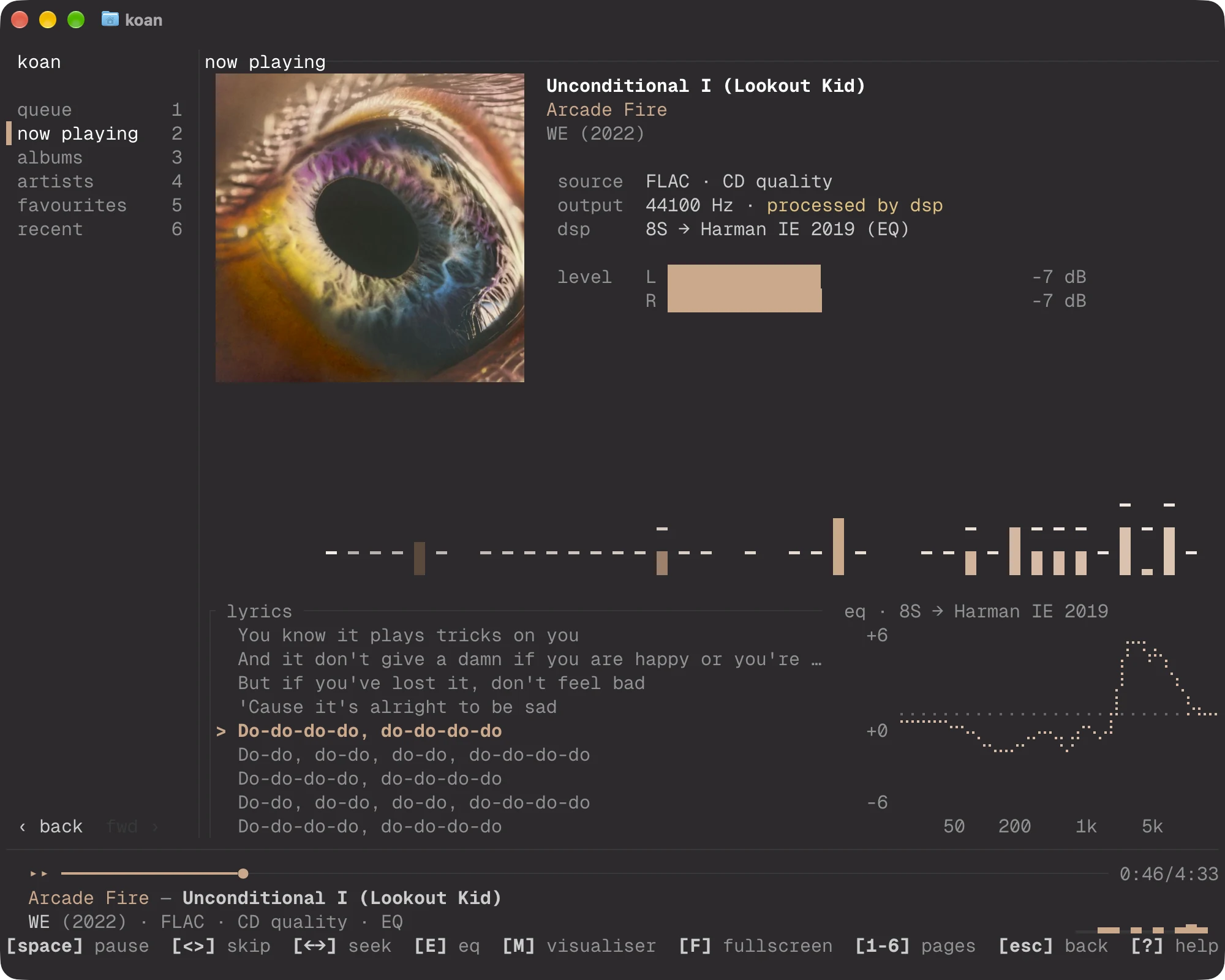
The page follows the apps' Now Playing: the cover, with the title and heart, the artist and the album as links, then the seek bar and the controls. Beside the cover on a wide terminal, under it on a narrow one, comes the signal path:
- source is the file's format.
- output is the rate the device was given, and says
bit-perfect ✓only when nothing stands between the file and the device; if the output is resampled, DSP is running, or ReplayGain is on, it says which instead. - eq names the profile, and opens the EQ page.
- play is the sleep timer and the output, each a click.
When a DSP profile is active, the response of everything the output plays, its correction and the EQs on it together, is plotted under the lyrics, headed with the preset or the profiles' names.
Loudness is measured as EBU R128 has it, of what is being heard: momentary over the last 400 ms and short over the last 3 s, in LUFS; the true peak as the highest heard this track, in dBTP; and each channel's level.
Below sit the spectrum (in the visualiser chosen with V, or stepped through with M), a spectrogram of the last moments, and the lyrics. Nothing on the page moves unless the music does: paused, the spectrogram stops and the loudness figures clear.
A click on the cover, or z, shows it as large as the terminal allows with the track and its artist and album under it; a click anywhere or Esc closes it.
The transport bar carries a small spectrum at the end of its last line when nothing larger is on screen.